

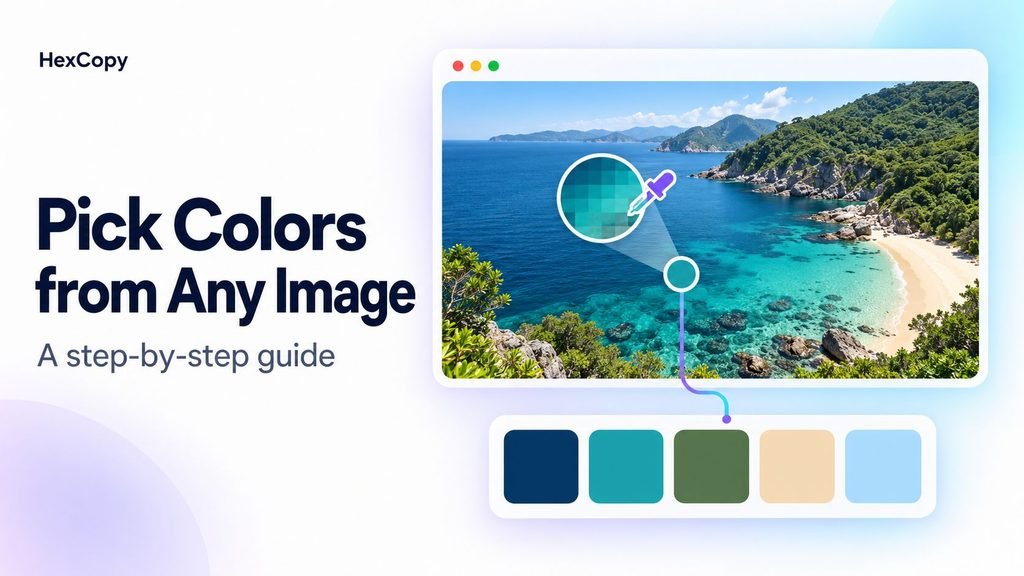
A photograph can be a useful starting point for a color palette. A landscape might combine muted greens with warm neutrals, while a product image might suggest a bold accent against a simple background.
The challenge is choosing colors that work outside the original image. A beautiful photograph does not automatically produce a readable website or a balanced graphic.
In this guide, you will learn how to pick colors from an image, save their codes, and turn them into a practical design palette.
1. Choose an Image That Fits Your Project
Start with an image that reflects the direction of your design.
For a travel website, you might use a destination photograph. For a handmade shop, you might choose a product image with natural materials and soft lighting.
Look for an image with:
- A few clearly distinguishable colors.
- A useful balance of light and dark areas.
- A mood that fits your project.
- Enough detail to select individual areas.
Avoid choosing an image only because it looks attractive. Ask whether its colors suit the content, products, or brand you are designing for.
2. Open the Image Color Picker
Visit the HexCopy Image Color Picker and choose your image file. You can also use the sample artwork to explore the tool before uploading your own image.
HexCopy processes the image in your browser rather than uploading it to a server.
Once the image is available, use the displayed image and extracted colors as starting points for your palette.
3. Identify the Main Colors
Look at the image as a whole before selecting individual pixels.
Which color covers the largest area? Which smaller color attracts your attention? Are there neutral areas that could support text or content?
Try identifying these three roles:
| Color role | What to look for | Possible design use |
|---|---|---|
| Main color | A color that helps define the image | Brand accent or section detail |
| Supporting color | A color that works alongside the main color | Cards, illustrations, or secondary accents |
| Neutral color | A light or dark area with less visual intensity | Backgrounds, surfaces, or text |
The most common color in the photograph does not have to become your website background. Assign colors according to their usefulness in the design.
4. Sample Specific Areas
If you need a particular color, sample the relevant area of the image.
For example, you might choose the blue of a painted door, the green of a leaf, or the warm beige of a wall.
Remember that photographs contain lighting variations. A single object may include bright highlights, deep shadows, and many shades between them.
Try a few nearby points before deciding. Choose a sample that represents the part of the image you want to capture, rather than an accidental highlight or shadow.
5. Copy and Record the Color Codes
Copy the color codes you want to keep and record their intended roles.
For example, a photograph-inspired palette could look like this:
| Intended role | Example HEX code |
|---|---|
| Main accent | #2563EB |
| Supporting green | #15803D |
| Warm background | #FFF7ED |
| Main text | #1E293B |
These are illustrative values, not colors extracted from a specific photograph.
A HEX code gives you a reusable color value. You can enter it into your website editor, graphics software, or other design tools.
If another tool asks for RGB or HSL, use the HexCopy Color Converter. Our HEX vs RGB vs HSL guide explains the differences between these formats.
6. Turn the Samples into a Small Palette
You do not need to use every extracted color.
Start with one main accent, one supporting color, and suitable neutrals. Remove colors that serve the same purpose or make the design feel unnecessarily busy.
You can also adjust an extracted color. A bright yellow from a photograph might work well as a small decorative detail but need a darker variation for text.
Keep the connection to the original image while adapting the palette to your design.
For more guidance on assigning color roles, read How to Choose a Color Palette for Your Website.
7. Check Readability Before Using the Palette
Test your colors on actual design elements, including headings, paragraphs, buttons, and cards.
Use the HexCopy Contrast Checker to check the foreground and background combinations you plan to use.
Pay particular attention to:
- Text placed over a colored background.
- Button labels.
- Supporting text and captions.
- Links inside paragraphs.
If your website has dark mode, test those combinations separately. A color that works on a light surface may need adjustment on a dark one.
Common Mistakes to Avoid
Using too many extracted colors
An image can contain thousands of variations. Your interface usually needs a much smaller set with clear roles.
Selecting only bright accents
A palette also needs quieter colors for backgrounds, surfaces, and readable text.
Assuming a pixel sample is an official brand color
A color sampled from a screenshot or photograph may differ from the original brand specification. Use official brand values when exact matching is required.
Frequently Asked Questions
Can I pick colors from a screenshot?
Yes. A screenshot can be a useful starting point for identifying visible colors. Keep in mind that transparency, gradients, and image compression can affect the sampled value.
Should I use the extracted colors exactly as they are?
You can, but adjustments are often useful. Choose shades that suit your layout and provide readable text combinations.
Can I create a palette from just one image?
Yes. Start with a few useful samples, assign their roles, and test them together on a small design before applying them everywhere.
Try It with Your Own Image
Choose an image that fits your project and open the HexCopy Image Color Picker. Select a few useful colors, save their codes, and test them on a simple layout.
The aim is to build a usable palette inspired by the image, with enough flexibility for readable and consistent design.