

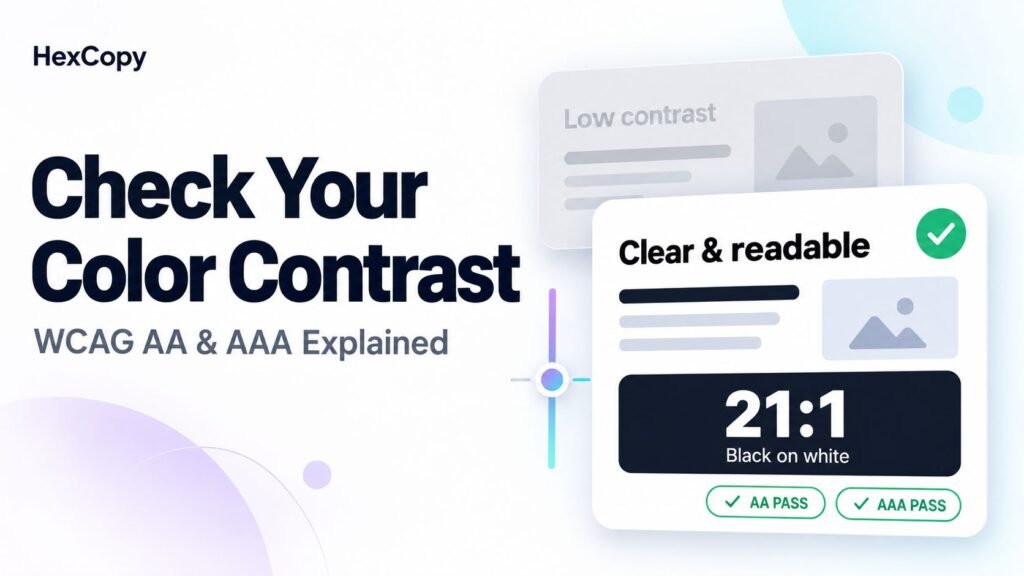
A color combination can look attractive and still be difficult to read. Pale text on a white card or dark headings on a dark background can make important information easy to miss.
Checking color contrast helps you find these problems before publishing your design.
This guide explains how to check color contrast, understand WCAG AA and AAA results, and apply them to text, buttons, and dark mode interfaces.
What Is Color Contrast?
Color contrast describes the difference in relative brightness between two colors, usually a foreground and its background.
A contrast ratio runs from 1:1 to 21:1. Identical colors have a ratio of 1:1, while black and white have a ratio of 21:1.
The ratio measures the color pair. Whether it meets a particular text requirement also depends on the text size and weight.
WCAG AA and AAA: The Main Text Requirements
The Web Content Accessibility Guidelines, or WCAG, include minimum and enhanced requirements for text contrast.
Use this table as a quick reference:
| Text category | Level AA minimum | Level AAA minimum |
|---|---|---|
| Normal text | 4.5:1 | 7:1 |
| Large text | 3:1 | 4.5:1 |
For these requirements, large text means at least 18 points, equivalent to 24 CSS pixels, or at least 14 points bold, approximately 18.67 CSS pixels.
A heading does not automatically qualify as large text. Check its actual size and weight.
Passing a contrast check addresses that particular requirement. It does not establish that the entire page or website conforms to WCAG.
1. Identify the Foreground and Background
Start with a specific element, such as a paragraph, navigation link, or button label.
Record the text color and the background directly behind it. For a button, this means checking the label against the button fill rather than the surrounding page.
For example:
- Paragraph text:
#000000 - Paragraph background:
#FFFFFF
Avoid judging the pair only by how it looks on your own screen. Display settings and viewing conditions vary.
2. Enter the Colors into a Contrast Checker
Open the HexCopy Contrast Checker and enter your foreground and background colors.
Review the reported ratio and the results for normal and large text.
If your colors use different formats, you can convert them with the HexCopy Color Converter. Our HEX vs RGB vs HSL guide explains those formats.
3. Interpret the Result for Your Text
Suppose a pair has a contrast ratio of 4:1.
It meets the AA requirement for large text, but it does not meet the AA requirement for normal text. It also falls below the AAA requirement for either category.
Use the result that matches the element you are testing. A large heading and a small caption may need different treatment even when they use the same colors.
Do not round a result upward to claim a pass. A value below the required threshold remains below it.
4. Adjust the Pair and Test Again
If a combination fails, try changing one color at a time.
You might:
- Darken text on a light background.
- Lighten text on a dark background.
- Change a button fill to support a readable label.
- Put text on a solid surface instead of directly over an image.
Keep useful brand colors where they work, but allow different shades for different roles. Your main accent does not have to be the color of every link, heading, and button.
Our website color palette guide explains how to assign those roles.
5. Check Buttons, Icons, and Form Controls
Text contrast and non-text contrast are separate checks.
The text inside a button follows the text requirements. Visual information needed to identify controls, their states, or meaningful graphics generally needs at least 3:1 contrast against adjacent colors, subject to the criterion’s exceptions.
This does not mean every decorative border needs a 3:1 ratio. Focus on visual information people need to understand or operate the interface.
Check elements such as checkbox indicators, essential icons, and form boundaries when those boundaries are needed to identify the fields.
6. Test Light and Dark Mode Separately
Switching the page background is only part of creating dark mode.
Review internal headings, captions, form labels, input values, and supporting text. These elements can accidentally retain colors intended for light backgrounds.
Test the actual pairs in each mode. Also review hover, focus, selected, and error states where applicable.
7. Review Gradients and Image Backgrounds
Text over a photograph or gradient may sit over several different colors.
Check the least favorable area behind the text rather than testing only one convenient point. Responsive layouts can move the text over another part of an image, so review mobile layouts too.
A solid text panel or a carefully chosen overlay can make the background more predictable.
Common Mistakes to Avoid
Checking only the main heading
Small labels, captions, and supporting text are easy to overlook. Include them in your review.
Assuming different hues provide enough contrast
Two colors can look very different while having similar brightness. Measure the pair.
Treating one passing result as a website-wide pass
Different elements use different backgrounds and states. Check each relevant combination.
Frequently Asked Questions
Should I aim for AA or AAA?
AA and AAA specify different thresholds. Choose your project’s accessibility target, and use stronger contrast where it improves readability without compromising other needs.
Does dark mode automatically improve contrast?
No. Dark text on a dark surface can be difficult to read. Test dark mode combinations separately.
Does passing color contrast make my website fully accessible?
No. Accessibility also involves matters such as keyboard operation, text alternatives, page structure, and form instructions.
Check Your Design Before Publishing
Start with body text, buttons, and form labels. Test their color pairs, adjust weak combinations, and review both desktop and mobile layouts.
Use the HexCopy Contrast Checker to make contrast testing part of your normal design process.