

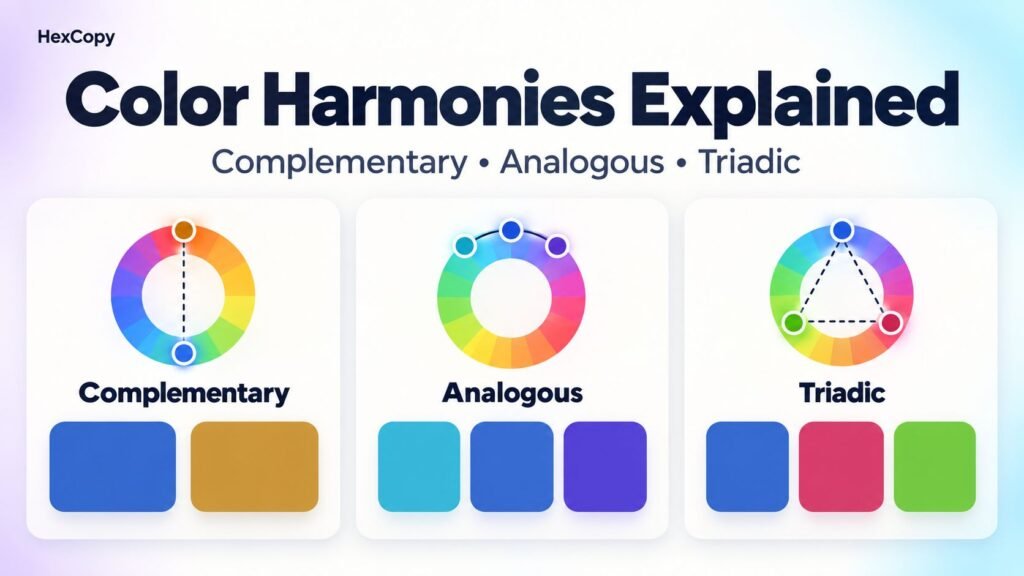
Some color combinations feel calm and closely connected. Others create a bold contrast that immediately catches your attention.
Color harmonies provide a starting structure for these combinations. They describe relationships between colors on a color wheel, helping you explore a palette without choosing every color at random.
This guide explains complementary, analogous and triadic color harmonies, with practical examples you can adapt for websites, graphics, and branding.
What Are Color Harmonies?
Color harmonies are combinations based on the positions of colors around a color wheel.
They can help you find supporting colors for an existing brand color or explore different directions for a new design.
However, a harmony does not automatically produce a finished palette. You still need to decide how much of each color to use, choose suitable backgrounds, and check readability.
The examples below use an HSL-based digital color wheel. Results can differ between color models and tools.
1. Complementary Colors: Opposites on the Wheel
Complementary colors sit opposite each other on a color wheel. They create a noticeable contrast in hue.
A digital example is:
| Color role | HEX code |
|---|---|
| Base blue | #3366CC |
| Complementary golden brown | #CC9933 |
This combination gives you two distinct directions to work with. You might use blue for the main brand identity and golden brown for a small highlight.
How to Use Complementary Colors
Choose one color to lead and use the other selectively.
For example, a travel website could use blue for navigation and section details, with a warmer accent for a featured destination label.
Avoid filling the entire page with equal amounts of both colors before testing the result. Strong competing colors can make a layout feel busy.
Also, opposite hues do not guarantee readable text. Check the actual foreground and background pair before using one color as text over the other.
2. Analogous Colors: Neighbors on the Wheel
Analogous colors sit near one another on a color wheel. Because they share similar hues, they can create a more closely connected visual direction.
Here is an example built around the same blue:
| Color | HEX code |
|---|---|
| Cyan blue | #33B3CC |
| Base blue | #3366CC |
| Blue violet | #4D33CC |
How to Use Analogous Colors
An analogous palette can work well when you want several related accents.
You could use the base blue for primary actions, cyan blue for illustrations, and blue violet for selected details.
Pair the colorful elements with neutral backgrounds and readable text. Related hues alone may not provide enough separation between a button, its surrounding card, and the page background.
Analogous colors are also useful starting points for gradients. Preview the transition rather than assuming every neighboring pair will produce the effect you want.
3. Triadic Colors: Three Evenly Spaced Hues
A triadic harmony uses three colors spaced evenly around the color wheel.
For our base blue, an HSL-based example is:
| Color | HEX code |
|---|---|
| Blue | #3366CC |
| Pink red | #CC3366 |
| Yellow green | #66CC33 |
This gives you three distinct hues to work with.
How to Use Triadic Colors
Give each color a clear role rather than making all three compete for attention.
For example:
- Blue could be the main brand accent.
- Pink red could highlight selected promotional content.
- Yellow green could appear in illustrations or small decorative details.
Keep ordinary content areas quieter so that the palette supports the information.
A triadic structure can offer variety, but you do not need to use every color in every section.
Which Color Harmony Should You Choose?
Use your design goal to narrow the options:
| Design goal | Starting point |
|---|---|
| Two clearly different accent hues | Complementary |
| A group of closely related colors | Analogous |
| Three distinct hues for a varied palette | Triadic |
These are starting points, not strict rules. The final result also depends on brightness, saturation, spacing, imagery, and the amount of each color you use.
Try more than one structure on the same small layout before choosing.
Turn a Harmony into a Website Palette
A set of colorful swatches still needs supporting neutrals and practical roles.
Follow this process:
- Choose your base color.
- Explore its complementary, analogous, and triadic combinations.
- Select the supporting colors you actually need.
- Add suitable background, surface, and text colors.
- Test the palette on headings, buttons, cards, and form fields.
- Check both light and dark mode.
You can explore related combinations in the HexCopy Color Picker and try alternative palettes with the Palette Generator.
For guidance on assigning colors to interface elements, read How to Choose a Color Palette for Your Website.
Check Contrast Separately
Color harmony and color contrast answer different questions.
Harmony helps you explore relationships between hues. Contrast testing checks the brightness difference between the colors you place together.
A complementary pair can still be unsuitable for small text. An analogous palette can also be readable when you choose appropriate light and dark variations.
Use the HexCopy Contrast Checker to test your actual combinations.
Our color contrast guide explains the WCAG AA and AAA text thresholds.
Common Mistakes to Avoid
Using Every Color Equally
Choose a leading color and give supporting colors specific jobs. Equal visual emphasis is not always useful.
Forgetting Neutral Colors
Backgrounds, surfaces, and text need attention too. Neutrals help organize the colorful parts of your design.
Treating Generated Colors as Final Choices
Adjust shades and saturation when needed. A generated harmony is a starting point for testing.
Frequently Asked Questions
Are complementary colors always suitable for text and backgrounds?
No. Their positions on a color wheel do not guarantee sufficient text contrast. Test the exact pair.
Can I change the shades in a color harmony?
Yes. Lighter, darker, or less saturated variations can help you adapt the combination to your layout.
Do different color tools produce different harmonies?
They can. Tools may use different color models or generation methods. Compare the results visually and test them in your design.
Can I combine different harmonies in one project?
Yes, but keep the overall color roles consistent. Adding new colors to every section can make the interface harder to follow.
Build Your Own Combination
Start with one color and compare its complementary, analogous, and triadic combinations.
Choose the structure that suits your content, add useful neutrals, and test the result on a real layout. A practical palette needs both an appealing relationship between colors and readable combinations.