

Finding a useful color palette often takes a few attempts. You might like one color in a combination but want to replace the others, or you might already have a brand color that must stay.
The HexCopy Palette Generator helps you explore these options. You can generate combinations, keep selected colors, and adjust individual shades before using the palette in a design.
This guide walks through the process, from generating your first combination to saving the result.
1. Open the Palette Generator
Visit the HexCopy Palette Generator.
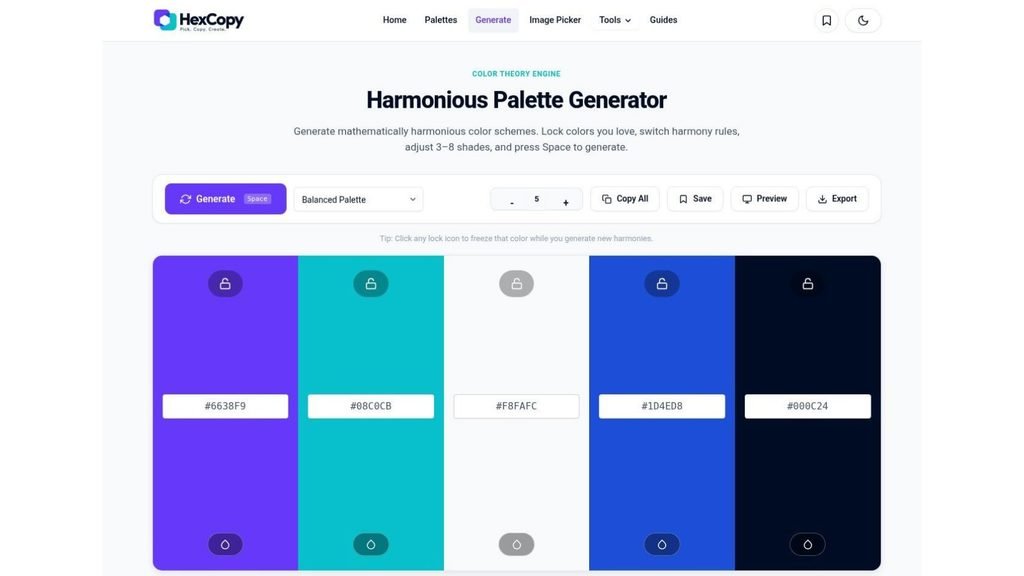
The page displays a main palette with individual color swatches and their HEX codes. Each swatch represents one color in the combination.
Start by looking at the palette as a whole. You do not need to decide immediately which color will become a background, button, or heading.
2. Generate Different Combinations
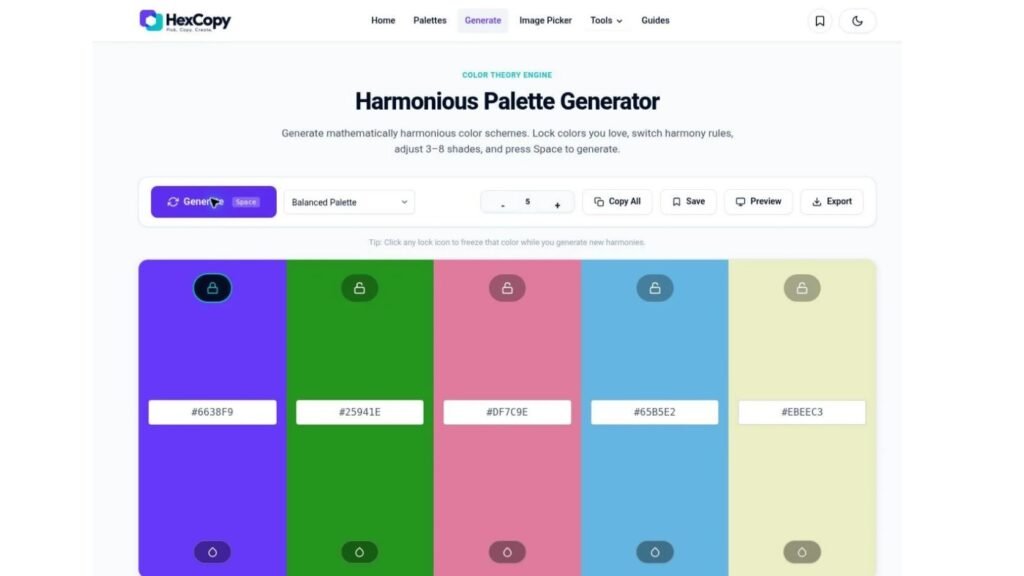
Select Generate to explore a new set of colors.
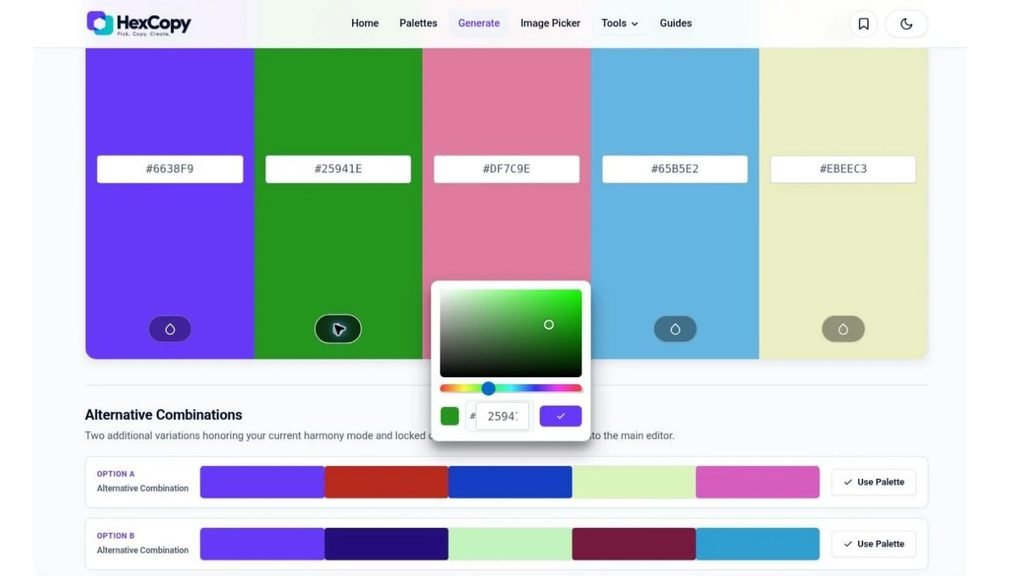
Alongside the main palette, the generator provides alternative combinations so you can compare different directions.
Look for a combination that fits your project. For example:
- A restrained palette for a service website.
- A colorful combination for illustrations.
- Soft shades for invitations or social graphics.
When an alternative looks promising, select Use Palette to bring it into the main editor.
Generate a few options before making detailed adjustments. This helps you choose an overall direction first.
3. Choose a Color Harmony
Use the available harmony options to guide how the colors relate to one another.
Different structures can produce different starting points:
| Harmony | Relationship between colors |
|---|---|
| Complementary | Opposite hues |
| Analogous | Neighboring hues |
| Triadic | Three evenly spaced hues |
Try the same starting color with different harmony settings and compare the results.
Our color harmonies guide explains these relationships with examples.
A harmony helps organize the palette, but it does not guarantee readable text or a finished website design.
4. Lock the Colors You Want to Keep
If you like a particular color, use its lock control before generating again.
Locking lets you keep that color while exploring changes to the unlocked colors.
A practical workflow is:
- Generate a combination.
- Choose one color you want to retain.
- Lock that swatch.
- Generate again.
- Compare the new supporting colors.
Unlock the swatch when you want to explore a different starting point.
This is useful when part of a palette works well and you want to improve the rest without starting over.
5. Enter or Pick a Custom Color
You can also adjust an individual color using its custom color picker.
Open the picker for the swatch you want to change. Choose a shade visually or enter a HEX value, then use the confirmation control to apply it.
For example, if your existing brand color is #6638F9, enter that value and lock the resulting swatch before generating supporting colors.
The picker’s confirmation control also copies the selected HEX value. Paste it into a text field or your design editor when you need to use it elsewhere.
If you are unfamiliar with color formats, read our HEX vs RGB vs HSL guide.
6. Assign Roles to Your Selected Colors
Once you have a promising combination, decide what each color will do.
| Design role | What to consider |
|---|---|
| Main accent | A recognizable color for important actions |
| Supporting accent | A color for selected details |
| Background | A surface that supports your content |
| Main text | A readable color against the chosen background |
You do not have to use every generated color. You can also add neutral colors that are not part of the original combination.
For a more detailed process, read How to Choose a Color Palette for Your Website.
7. Copy, Save, or Download the Result
Use the available copy controls to take individual color codes or the palette into your design workflow.
The save option lets you keep a palette for later use in the same browser. HexCopy’s saved palettes use browser storage, so they do not automatically follow you to another device.
For a separate reference, use the download option or keep a written list of the HEX codes.
Give the palette a useful project label in your own files, such as “Portfolio — Main Palette,” so you can identify it later.
8. Test the Palette Before Applying It Everywhere
Try your selected colors on a small layout containing a heading, paragraph, button, and card.
Check whether the main action stands out and whether the text remains readable.
Use the HexCopy Contrast Checker to test actual foreground and background pairs. Review dark mode separately if your website supports it.
The generator helps you find combinations. Testing determines whether those combinations suit your content and interface.
Common Mistakes to Avoid
Generating Without Keeping Useful Colors
Lock a color when it is worth retaining. Otherwise, you may lose a useful starting point while browsing alternatives.
Using Every Color Equally
Give colors different roles and amounts of visual emphasis. A small accent does not need to fill an entire section.
Relying Only on Browser-Saved Palettes
Keep important project colors in your design files as well. Clearing browser data can remove locally saved palettes.
Frequently Asked Questions
Can I start with my existing brand color?
Yes. Set a swatch to your brand’s HEX value, lock it, and explore supporting colors.
Why does a color stay the same when I generate again?
Check whether that swatch is locked. Unlock it if you want it to change.
Do I need to use all the generated colors?
No. Choose the colors that serve your design and add suitable neutrals where needed.
Will saved palettes appear on another device?
They do not automatically sync between devices. Keep a downloaded or written reference when you need to move a palette elsewhere.
Build Your First Palette
Open the HexCopy Palette Generator, compare a few combinations, and lock a color you want to keep.
Adjust the remaining shades, assign their roles, and test the result on your actual content before applying it throughout the project.