

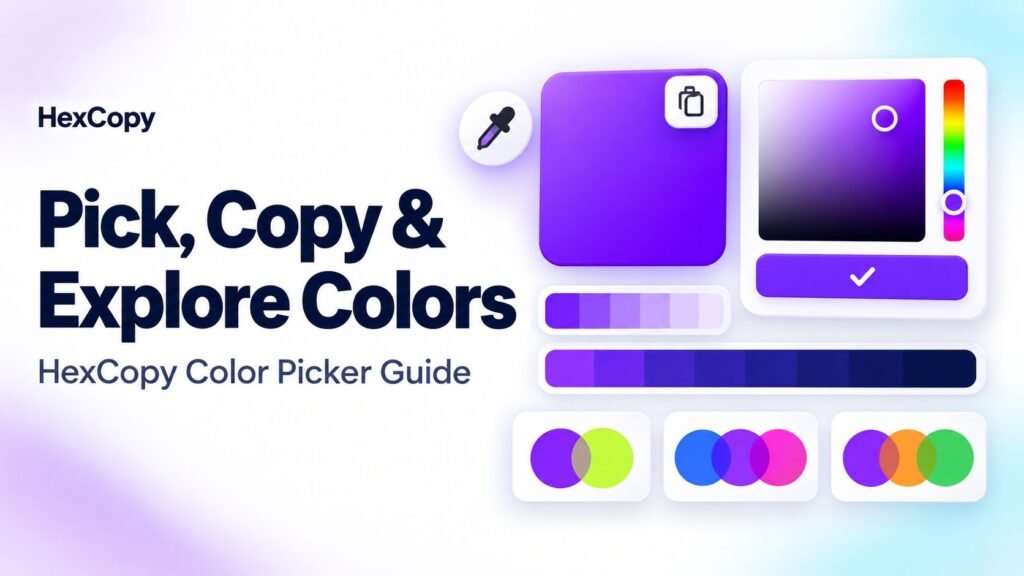
Choosing a color is only the first step. You may also need its HEX code, an RGB value for another tool, or a lighter variation for a background.
The HexCopy Color Picker brings these tasks together. You can select a color, view its values, explore tints and shades, and copy colors from related harmonies.
This guide explains how to use each section and turn a starting color into useful design choices.
1. Open the Color Picker
Visit the HexCopy Color Picker.
The page includes a large color preview, color values, lighter and darker variations, and a Color Harmonies section.
Think of the large preview as your current working color. The other sections help you inspect its values and explore related choices.
2. Select Your Starting Color
Use Pick Color to open the color selection control.
Choose a hue, then adjust the shade visually. If you already have a HEX value, you can enter it instead of trying to match the color by eye.
For example, enter #6638F9 to start with a vivid violet.
Confirm your selection and check the large preview. The displayed values and related variations should now correspond to your chosen color.
If you need to sample a photograph instead, use the separate Image Color Picker.
3. Copy the Main Color
Use Copy Code beneath the large preview to copy the current HEX value.
Paste it into your website editor, design software, or project notes.
A HEX value such as #6638F9 identifies a reusable digital color. Keeping the exact code helps you apply the same value consistently across your design.
When recording project colors, add a role beside each code:
| Project role | Example |
|---|---|
| Primary brand accent | #6638F9 |
| Main text | #0F172A |
| Light background | #F8FAFC |
These roles are examples, rather than a complete palette recommendation.
4. Read the Color Conversions
The Color Conversions section displays the selected color in different formats.
| Format | What it describes |
|---|---|
| HEX | Red, green, and blue values written in hexadecimal |
| RGB | Red, green, and blue channel values |
| HSL | Hue, saturation, and lightness |
| CMYK | An approximate conversion to cyan, magenta, yellow, and black |
Use the copy control beside the format your destination tool requires.
For a fuller explanation, read HEX vs RGB vs HSL: Color Codes Explained for Beginners.
The displayed CMYK conversion is approximate. For print production, use the printer’s required color profile and proofing process rather than treating this value as a guaranteed printed match.
5. Explore Tints and Shades
The Tints (Lighter) section provides lighter variations of your working color. The Shades (Darker) section provides darker variations.
These sections are useful when you need related colors for backgrounds, decorative details, or different levels of emphasis.
There are two separate actions:
- Select a swatch to inspect that variation as your working color.
- Use its copy icon when you only want to copy the value.
Copying a variation and selecting it serve different purposes. Use the copy icon when you want to keep exploring from your existing base color.
6. Copy Colors from Color Harmonies
Scroll to Color Harmonies to explore combinations related to the current color.
The section includes:
- Complementary.
- Triadic.
- Analogous.
- Split-complementary.
- Tetradic.
Click or tap an individual harmony swatch to copy its HEX value.
Choose the colors that suit your project rather than assuming every generated combination belongs in the final design.
Our color harmonies guide explains the relationships behind several of these combinations.
7. Check Whether the Colors Work Together
A color relationship does not guarantee readable text.
For example, a lighter tint might work as a background but be difficult to read as small text on white.
Use Check WCAG Contrast, or open the HexCopy Contrast Checker, to evaluate the foreground and background colors you intend to combine.
Test the actual pair you will use. A color can work well on one surface and poorly on another.
8. Build a Small Working Palette
Try this practical workflow:
- Choose a main color.
- Copy its HEX value.
- Select a useful lighter or darker variation.
- Copy one supporting color from a harmony.
- Add suitable neutral colors for text and backgrounds.
- Test the combinations on a small layout.
For more alternatives, open the Palette Generator. Our Palette Generator tutorial explains how to generate combinations and keep selected colors locked.
Common Mistakes to Avoid
Selecting a Variation When You Only Want to Copy It
Use the dedicated copy icon in Tints and Shades when you want the value without changing your working color.
Choosing Colors Only from the Swatch Preview
Try them on real headings, buttons, and backgrounds before deciding.
Assuming Every Color Format Is a Print Guarantee
Digital color values and approximate CMYK conversions are not substitutes for a printer’s production requirements.
Frequently Asked Questions
What is the difference between Color Picker and Image Color Picker?
Color Picker lets you choose a color and explore its values and variations. Image Color Picker helps you find colors within an image.
Why does the large preview change when I select a tint or shade?
Selecting that swatch makes the variation your working color. Use its copy icon if you only want to copy the code.
Can I copy an individual harmony color?
Yes. Click or tap the specific swatch you want in the Color Harmonies section.
Will a copied color look identical on every screen?
Its code stays the same, but display settings, screen capabilities, and viewing conditions can affect its appearance.
Try It with Your Brand Color
Open the HexCopy Color Picker and start with your brand’s HEX value.
Explore a few variations, copy useful supporting colors, and test their contrast before applying them to your website or graphics.