

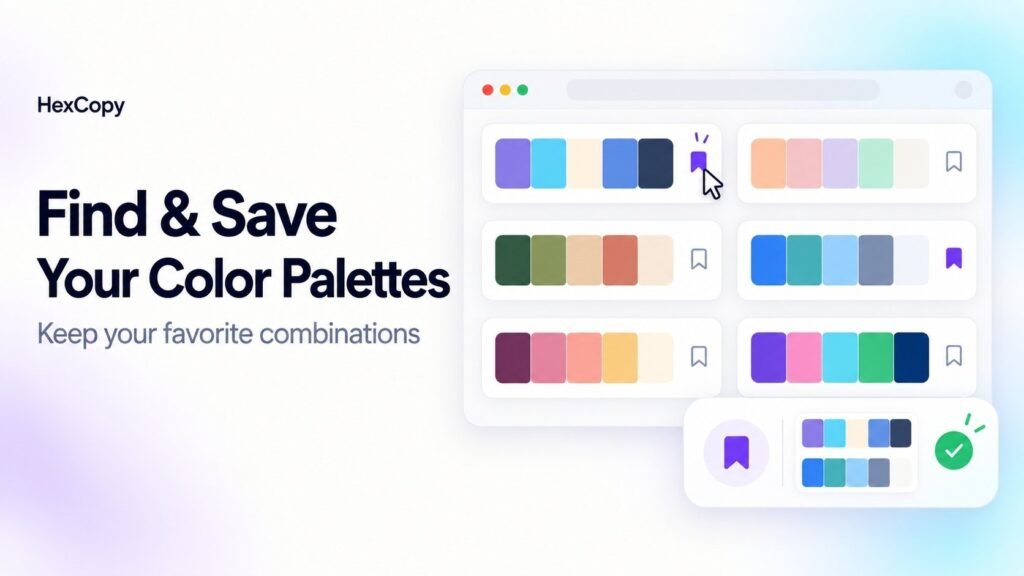
Finding an attractive palette is useful, but keeping track of it matters too. When you return to a project later, you should be able to find the same combination without starting your search again.
HexCopy lets you explore palettes, copy colors, and save combinations for later use in the same browser.
This guide explains how to choose useful palettes and keep a reliable reference for your projects.
1. Open the Palette Collection
Visit the HexCopy palette collection.
Browse the combinations and look for a visual direction that suits your project. You might need soft colors for an invitation, strong accents for a portfolio, or a restrained combination for a business website.
Focus on how the colors could work with your content. A palette that looks appealing as swatches may need adjustments when used on a real page.
2. Compare a Few Different Directions
Before saving several similar combinations, compare palettes with different characteristics.
Ask yourself:
- Does the combination include a useful main accent?
- Are there lighter or darker colors that could support the design?
- Would these colors work alongside my photographs or illustrations?
- Does the palette fit the visual direction of the project?
Try choosing a small shortlist. Comparing a few distinct options is usually easier than keeping dozens without knowing why you selected them.
For help making the choice, read How to Choose a Color Palette for Your Website.
3. Copy the Colors You Need
Use the available copy controls to take color values into your design workflow.
Copy an individual color when you only need one shade. Use the palette copy option when you want to keep the combination together.
After copying, paste the result into a text field or your design software to confirm what you have copied.
Record a purpose beside important values:
| Color role | What to record |
|---|---|
| Main accent | The HEX code used for key brand details |
| Supporting accent | A code for selected highlights |
| Background | The color behind your main content |
| Main text | A readable foreground color |
You do not need to use every color from the original palette.
4. Save a Palette for Later
Use the palette’s save control to add it to your saved collection.
Saving is useful when you want to compare a combination later or return to it while working on a project.
Open the bookmark icon in the website header to access saved palettes.
HexCopy stores saved palettes in your browser. You do not need to create a visitor account, but the collection does not automatically sync to another device or browser.
5. Understand Where Saved Palettes Live
Treat browser-saved palettes as a convenient working collection.
Keep these points in mind:
| Situation | What to expect |
|---|---|
| Returning in the same browser and profile | Saved palettes can remain available |
| Opening another browser or device | The collection does not automatically transfer |
| Clearing the website’s browser data | Saved palettes may be removed |
| Using private browsing | Saved data may disappear when the private session ends |
For an important project, also keep a separate copy of the color codes.
6. Keep a Downloaded or Written Reference
Use the available download option when you want a reference outside the website.
You can also paste the HEX values into your project notes and label their roles.
A useful record might look like this:
Project: Creative Portfolio
Primary accent: #6638F9
Background: #F8FAFC
Main text: #0F172A
These values are illustrative. Check the combinations you plan to use rather than treating an example as a complete design specification.
Use a clear filename or note title so that you can identify the palette later.
7. Adapt a Palette to Your Project
A saved palette is a starting point. You may need a darker button color, a quieter background, or an additional neutral.
Use the HexCopy Color Picker to explore variations of a selected color.
If you want to build a new combination around an existing shade, try the Palette Generator. You can keep a chosen color locked while exploring alternatives.
Our Palette Generator guide explains that process.
8. Test Before Applying the Palette Everywhere
Try the colors on a small layout containing real content.
Include a heading, paragraph, button, and card. Check whether the important action stands out and the supporting information remains readable.
Use the HexCopy Contrast Checker to test foreground and background pairs.
If your website supports dark mode, review those combinations separately.
Common Mistakes to Avoid
Saving Without Recording a Purpose
Keep a short note about which project or visual direction a palette suits. This makes later comparisons easier.
Assuming Saved Palettes Sync Across Devices
Browser storage is local to the browser environment. Keep a separate reference when you need to move between devices.
Using Every Swatch in the Final Design
Choose the colors that serve a clear role. Add suitable neutrals where needed.
Frequently Asked Questions
Do I need an account to save palettes?
No. HexCopy uses browser storage for saved palettes.
Where can I find my saved palettes?
Use the bookmark icon in the website header to open the saved collection.
Why are my saved palettes missing in another browser?
Different browsers and profiles have separate storage. Your saved collection does not automatically sync between them.
Can clearing browser data remove saved palettes?
Yes. Clearing the website’s stored data can remove locally saved palettes. Keep important codes in your project files as well.
Build a Useful Palette Collection
Open the HexCopy palette collection, choose a few combinations that fit your project, and save your favorites.
Copy the codes you need, record their roles, and test them on your actual design before making the final choice.