

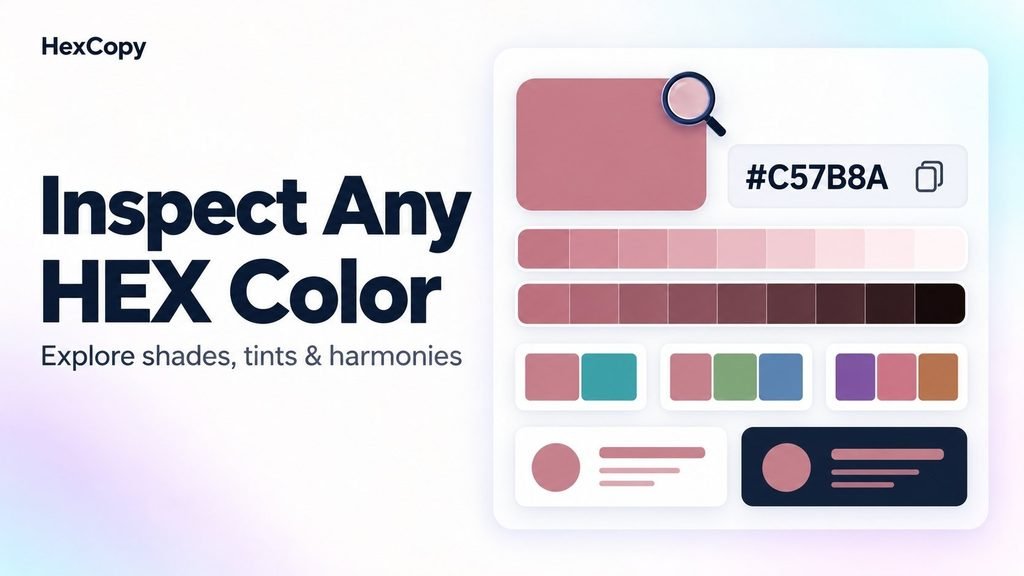
You have a HEX code from a logo, a design file, or a website project. Before using it, you may want to see the color clearly, explore related shades, and check how it works against different backgrounds.
HexCopy’s Inspect Color option helps you investigate a specific color rather than starting with a complete palette.
This guide explains how to inspect a HEX color and use the results to make practical design choices.
1. Find the HEX Code You Want to Explore
Start with a six-digit HEX color code.
For example, #C57B8A represents a muted rose color. The six characters after the hash identify its red, green, and blue channel values.
Copy the code carefully. If you are taking it from another document, avoid including extra words or punctuation.
For this walkthrough, use:
C57B8A
You can replace it with your own color once you understand the process.
2. Open Inspect Color on the Homepage
Visit the HexCopy homepage.
Find the color input beside Inspect Color. This is separate from the palette search field.
The input already displays a hash symbol beside the value, so enter the six characters without adding another hash.
Type C57B8A, then select Inspect Color.
HexCopy opens the detail page for that color. For this example, the address is:
3. Review the Selected Color
Use the main color display to check that you entered the intended value.
This is useful when a similar code could produce a different result. Changing a single character can alter the color, so compare the displayed HEX value with your original reference.
Remember that surrounding colors affect how a swatch appears. A rose color may feel more prominent against white than against another warm background.
Keep the exact code in your project notes rather than relying on visual memory.
4. Check the Background Contrast Examples
The color detail page includes examples showing the selected color against light and dark backgrounds.
Review the reported contrast ratio and the accompanying text results.
A pair may work for large text while failing the requirement for normal text. Use the result that matches the element you plan to create.
The displayed examples apply to their specified backgrounds. If your website uses a different background, test that exact pair with the HexCopy Contrast Checker.
Our WCAG contrast guide explains how to interpret AA and AAA text results.
5. Explore Tints and Shades
Scroll to the variation sections:
| Section | What it helps you explore |
|---|---|
| Tints — Lighter | Lighter variations of the selected color |
| Shades — Darker | Darker variations of the selected color |
Click or tap a variation to copy its HEX code.
You might use a lighter variation as a starting point for a decorative panel or a darker variation for a stronger accent.
Do not assume that a darker shade automatically works as text on every background. Test the combination you intend to use.
6. Look at Related Harmonies
The Related Harmonies section provides combinations connected to your selected color.
Examples include complementary, triadic, and analogous relationships.
Click or tap an individual swatch to copy its value. Keep the colors that suit your project rather than using the entire combination automatically.
For example, you could keep the rose color as your main accent, choose one supporting hue from a harmony, and add neutral colors for text and backgrounds.
Read our color harmonies guide to understand these relationships.
7. Give Your Selected Colors Clear Roles
After exploring the detail page, create a short list of useful values.
| Design role | What to choose |
|---|---|
| Main accent | Your original color or a preferred variation |
| Supporting accent | A related color that adds useful variety |
| Background | A suitable light or dark surface |
| Main text | A color with sufficient contrast against that surface |
A collection of attractive colors becomes more useful when each one has a purpose.
Our website color palette guide explains how to turn these choices into a practical interface palette.
8. Keep a Reference for Later
Copy the color detail page address into your project notes or bookmark it in your browser.
Keep important HEX values alongside their intended roles. The page address identifies the inspected color, but it does not record every supporting color you chose during your visit.
If you want to create more combinations around a selected shade, open the HexCopy Palette Generator. Enter the color, lock it, and explore alternatives.
Common Mistakes to Avoid
Using Palette Search Instead of Inspect Color
Palette search helps you find collections. Inspect Color opens details for a specific HEX value.
Entering an Extra Hash Symbol
When the input already supplies the hash symbol, enter only the six-character value.
Treating the Example Backgrounds as a Complete Contrast Test
Check your actual website background and text combination before using the color.
Frequently Asked Questions
What is the difference between Inspect Color and Color Picker?
Inspect Color opens a detail page for a specific HEX code. The Color Picker provides an interactive workspace for selecting and adjusting colors.
Can I copy lighter and darker variations?
Yes. Select a swatch in the Tints or Shades section to copy its HEX value.
Can I return to the same inspected color later?
Yes. Bookmark or save the color detail page address.
Does a color harmony guarantee readable text?
No. Harmony describes relationships between colors. Check text contrast separately.
Explore Your Own Color
Start with a HEX code you already use in a project.
Open the HexCopy homepage, select Inspect Color, and explore the background examples, variations, and related harmonies.
Copy useful values, assign their roles, and test them on your actual design before making the final choice.