

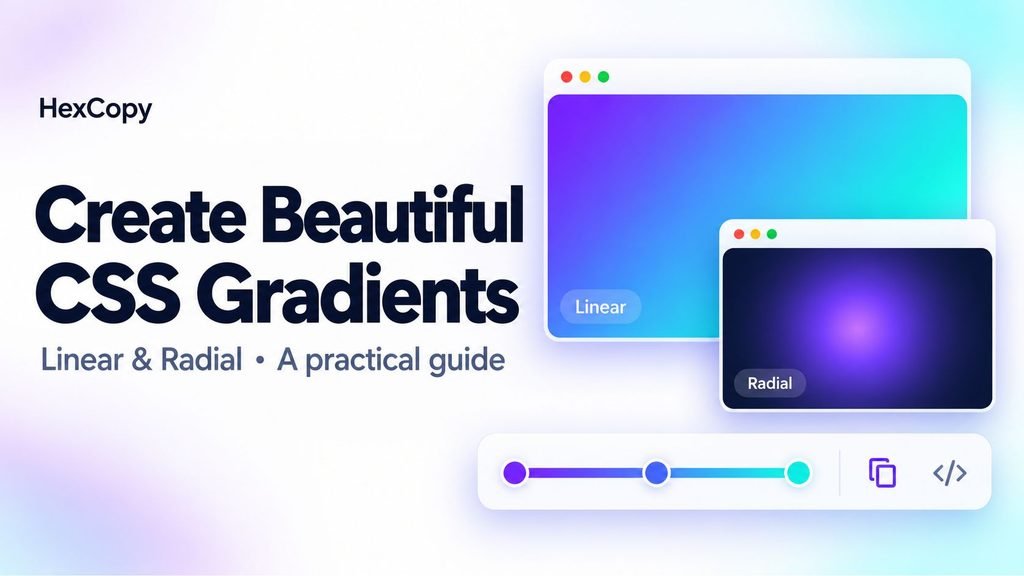
A gradient blends two or more colors across an area. It can add depth to a website banner, give a card a distinctive background, or create a subtle glow behind an illustration.
CSS lets you build these effects without uploading a separate background image.
This guide explains how to create CSS gradients, adjust their colors and positions, and use them without making your content difficult to read.
Linear and Radial Gradients: What Is the Difference?
A linear gradient blends colors along a straight line. A radial gradient spreads colors outward from an origin, creating a circular or elliptical transition. Both are generated images in CSS.
| Gradient type | Visual direction | Possible use |
|---|---|---|
| Linear | Along a straight line | Banners, buttons, section backgrounds |
| Radial | Outward from an origin | Glows, spotlights, decorative backgrounds |
Start with the type that suits your layout. A simple two-color linear gradient is a useful first experiment.
1. Choose Your Starting Colors
Select two colors that fit your website palette.
For example:
- Violet:
#6638F9 - Cyan:
#08C0CB
Preview the blend rather than judging only the endpoint colors. The colors between them will occupy much of the background.
If you need ideas, explore the HexCopy palette collection or read our color harmonies guide.
2. Create a Linear Gradient
Here is a basic gradient you can apply to an element with the class gradient-banner:
.gradient-banner {
  background-color: #6638F9;
  background-image: linear-gradient(
    135deg,
    #6638F9 0%,
    #08C0CB 100%
  );
  min-height: 240px;
}
The solid background color provides a base beneath the gradient image.
In this example, the violet begins at the start of the gradient and transitions toward cyan at the end.
Understand the Angle
The angle controls the direction of the gradient:
| Angle | Direction |
|---|---|
0deg | Toward the top |
90deg | Toward the right |
180deg | Toward the bottom |
270deg | Toward the left |
You can also use directions such as to right instead of an angle.
Try several directions on the actual element. A gradient can look different on a wide banner and a square card.
3. Adjust the Color Stops
Color stops define where particular colors occur along the gradient.
For example:
.gradient-banner {
  background-color: #6638F9;
  background-image: linear-gradient(
    90deg,
    #6638F9 0%,
    #08C0CB 70%,
    #B8F3E6 100%
  );
}
This introduces a third color near the end. Moving a stop changes the space available for the transitions around it.
Begin with two stops, then add another only when it improves the result. Too many unrelated colors can make the background compete with your content.
4. Try a Radial Gradient
A radial gradient is useful for creating a glow or drawing attention toward one area.
.gradient-glow {
  background-color: #0F172A;
  background-image: radial-gradient(
    circle at center,
    #6638F9 0%,
    #0F172A 75%
  );
  min-height: 240px;
}
Here, the violet spreads outward from the center and blends into a dark background. The circle keyword sets the shape, while at center sets its origin.
Preview the effect at different element sizes before deciding where to use it.
5. Build a Gradient Visually with HexCopy
If you prefer adjusting a live preview, open the HexCopy Gradient Generator.
Use this workflow:
- Choose Linear or Radial.
- Set your color stops.
- Adjust the stop percentages.
- For a linear gradient, choose an angle.
- Review the live preview.
- Use Copy CSS to copy the generated declarations.
You can also choose a preset as a starting point and adapt its colors.
The copied declarations belong inside a CSS rule targeting your chosen element. If your editor has a dedicated gradient background control, you can instead enter the colors and positions there.
6. Keep Text Readable
A gradient background can contain both light and dark areas. Text that looks clear at one end may become difficult to read at the other.
Check the background directly behind every part of the text. For a simple opaque gradient, sample the relevant areas and test those pairs with the HexCopy Contrast Checker.
When readability is inconsistent, try:
- Choosing a more uniform range of background brightness.
- Placing text on a solid card.
- Moving the gradient to a decorative area.
- Adjusting the text position.
Avoid assuming that white text will work on every colorful background.
7. Review Mobile and Dark Mode
Responsive layouts change an element’s proportions and may move text over a different part of the gradient.
Check your design on a narrow screen as well as desktop. Review the surrounding surfaces and text again in dark mode.
A gradient can remain unchanged between themes, but its relationship with nearby content may need adjustment.
Common Mistakes to Avoid
Pasting CSS Declarations into a Text Paragraph
CSS must go into an appropriate stylesheet or CSS editing field. Pasting it into ordinary post content displays the code as text.
Styling Every Section with a Gradient
Use gradients where they support the design. Quieter surfaces help paragraphs and forms remain easy to scan.
Checking Only the Generator Preview
Test the gradient in its final location, with the actual content and element dimensions.
Frequently Asked Questions
Do CSS gradients need an image file?
No. The browser generates the gradient from your CSS.
Can a gradient contain more than two colors?
Yes. Add more color stops and adjust their positions to control the blend.
Can I use HEX colors in a CSS gradient?
Yes. The examples in this guide use HEX values. Other supported CSS color formats can also be used.
Is a gradient always suitable behind text?
No. Check readability across the full area behind the text and adjust the design where necessary.
Create Your First Gradient
Start with two colors, choose a direction, and adjust the stops. Test the result on one banner or card before using it elsewhere.
Open the HexCopy Gradient Generator to experiment and copy the CSS for your design.