

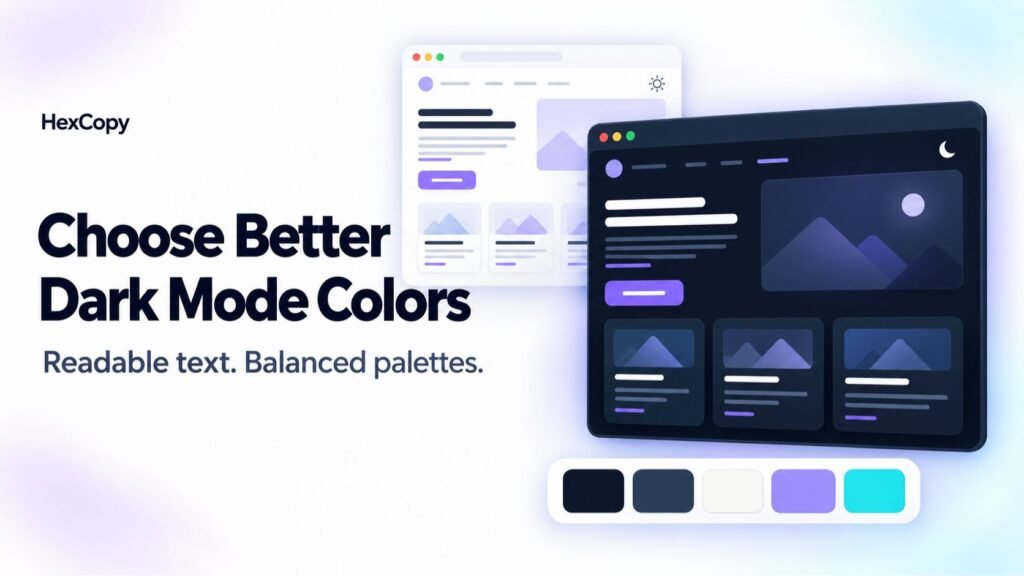
Creating dark mode involves more than changing a white background to black. Your headings, cards, buttons, and form fields all need colors that work together.
A page can have a dark background while smaller headings remain almost invisible. Bright accents can also become distracting when used across large areas.
This guide explains how to choose dark mode colors, assign them clear roles, and test the results on a working website.
1. Start with Your Background and Surfaces
Choose a main background first, then select supporting surfaces for cards, menus, and forms.
You can start with a dark neutral or a slightly tinted color, depending on your brand.
For example:
| Role | Example HEX code |
|---|---|
| Page background | #0F172A |
| Card surface | #1E293B |
| Raised surface | #334155 |
These values create a starting hierarchy. They are not a complete accessibility specification.
Check whether visitors can distinguish important sections. Where a boundary is necessary, you may need a clearer border or a larger difference between adjacent surfaces.
2. Give Text Its Own Color Roles
Do not assume that every text element will automatically adapt when you change the background.
Define colors for:
- Main headings and body text.
- Supporting descriptions.
- Form labels and entered values.
- Links and interactive labels.
- Error and success messages.
Here is a starting example:
| Text role | Example HEX code |
|---|---|
| Main text | #F1F5F9 |
| Supporting text | #CBD5E1 |
| Muted text | #94A3B8 |
Test each text color against the surface where it appears. A color that works on the page background may need adjustment inside a lighter card.
Important instructions should remain easy to read. Avoid making essential information faint simply because it is secondary.
3. Adapt Your Brand Accent
Your light mode brand color may still work in dark mode, but test it before reusing it everywhere.
A violet accent could have different versions for different jobs:
| Purpose | Example HEX code |
|---|---|
| Light violet link | #C4B5FD |
| Strong violet button fill | #6D28D9 |
| Soft decorative violet | #A78BFA |
These are illustrative choices, not interchangeable values. Check link text against its background and button text against the button fill.
A bright accent may work well on a small icon but feel overwhelming across an entire section.
4. Review Buttons and Form Fields
Forms often reveal incomplete dark mode styling.
Check the input background, entered text, labels, placeholders, borders, and focus indicators separately.
For example, a white input can remain usable in a dark interface if its text is dark and readable. A dark input needs an appropriate text color and a clear way to identify the field.
Do not rely on a placeholder as the only explanation of what to enter. Keep useful field labels visible.
For buttons, review the default, hover, focus, and disabled appearances. Make sure interactive elements remain recognisable.
5. Test Contrast on Actual Color Pairs
Use the HexCopy Contrast Checker to test foreground and background combinations.
Include smaller elements such as captions, card headings, navigation labels, and form instructions.
Our WCAG color contrast guide explains AA and AAA text requirements.
A passing color pair does not establish that the whole website is accessible. Keyboard operation, page structure, and other aspects still need attention.
6. Preserve the Meaning of Images and Swatches
A theme change should not unintentionally alter photographs, product images, or color samples.
This matters particularly on a color tools website. If someone is inspecting a specific HEX color, the swatch should continue to represent that color in either theme.
Adapt the surrounding interface instead. You can change the label background, border, or text treatment without changing the sample itself.
Logos may need a separate version with lettering that remains visible on a dark header.
7. Check Content Beyond the Homepage
Test more than the main page title.
Open a tool page, a blog post, a menu, and a form. Review elements such as:
- Internal section headings.
- Tables and code examples.
- FAQ questions and answers.
- Comment forms.
- Notices and validation messages.
A page can look correct at the top while lower sections still use text colors intended for light mode.
8. Review Desktop and Mobile
Check both themes at different screen sizes.
Text may move onto a different background on mobile, and menus or dialogs may use surfaces that are not visible in the desktop layout.
Also check what happens when you switch themes and reload the page. The selected theme and its text colors should remain consistent.
Common Mistakes to Avoid
Changing Only the Page Background
Cards, menus, forms, and text need their own review.
Forcing All Text to White
White text can become unreadable inside a light input or a deliberately light preview panel. Style elements according to their actual backgrounds.
Using Very Faint Supporting Text
Captions and instructions still need to be readable. Check them rather than judging only the main heading.
Reversing Every Color
Automatic color inversion can distort photographs and brand assets. Choose interface colors deliberately.
Frequently Asked Questions
Does dark mode have to use pure black?
No. Dark gray, navy, and other dark neutrals can also serve as backgrounds. Choose a combination that suits your content and test it.
Can I keep the same accent color in both themes?
Yes, if it works in both contexts. You may need different shades for links, buttons, or decorative details.
Should every card have a border?
No. Use borders where they help identify boundaries or controls. Spacing and surface differences can also help organise content.
Can pastel colors work in dark mode?
Yes. They can provide useful accents, but check their contrast and the amount of bright color used across the page.
Build a Small Dark Mode Palette First
Start with a page background, a card surface, two text colors, and one accent.
Apply them to a sample heading, paragraph, button, and form field. Test those elements before extending the palette to the rest of the website.
Explore starting combinations with the HexCopy Palette Generator and use our website color palette guide to assign each color a clear role.