

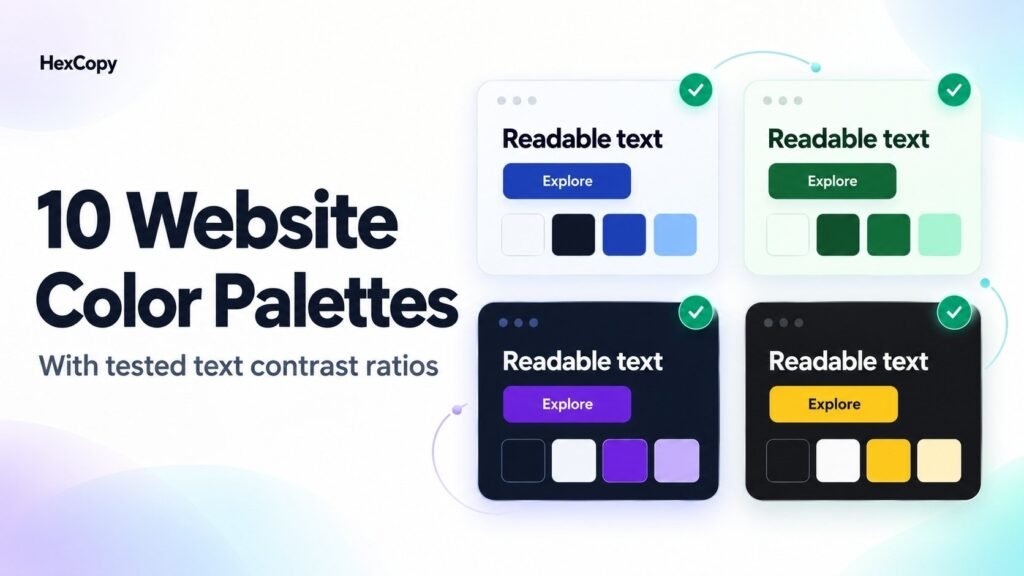
Choosing accessible website color palettes means looking beyond attractive swatches. You need to know which colors work together for text, backgrounds, and interactive elements.
This collection provides ten starting palettes with clearly assigned roles. Each includes a page background, body text, button fill, and button label, along with calculated text contrast ratios.
The results apply to the specific pairs shown. They do not certify an entire palette, page, or website as accessible.
How These Color Combinations Were Tested
The ratios below were calculated from the listed opaque sRGB HEX values using the WCAG relative luminance contrast formula:
Contrast ratio = (lighter luminance + 0.05) ÷ (darker luminance + 0.05)
Each palette has two checks:
- Body text against the page background.
- Button label against the button fill.
For normal text, WCAG AA requires at least 4.5:1, while AAA requires at least 7:1. The classifications below use these normal-text thresholds.
Displayed ratios are rounded to two decimal places; pass results were determined using the unrounded values.
1. Ocean Blue
A light neutral background with navy text and a strong blue button.
| Role | HEX code |
|---|---|
| Page background | #F8FAFC |
| Body text | #0F172A |
| Button fill | #1E40AF |
| Button label | #FFFFFF |
Body text contrast: 17.06:1 — AAA
Button label contrast: 8.72:1 — AAA
Design idea: Try this combination for a service website with clear reading areas and a blue enquiry button.
2. Forest Green
A pale green background paired with darker green text and controls.
| Role | HEX code |
|---|---|
| Page background | #F0FDF4 |
| Body text | #14532D |
| Button fill | #166534 |
| Button label | #FFFFFF |
Body text contrast: 8.70:1 — AAA
Button label contrast: 7.13:1 — AAA
Design idea: Use it for a gardening website, outdoor project, or product collection with botanical photography.
3. Plum Studio
A softly tinted background with deep plum text and a purple accent.
| Role | HEX code |
|---|---|
| Page background | #FAF5FF |
| Body text | #3B0764 |
| Button fill | #6B21A8 |
| Button label | #FFFFFF |
Body text contrast: 13.97:1 — AAA
Button label contrast: 8.72:1 — AAA
Design idea: Apply it to a creative portfolio, with purple reserved for important actions and selected details.
4. Warm Terracotta
Warm ivory and dark brown provide a base for a terracotta button.
| Role | HEX code |
|---|---|
| Page background | #FFF7ED |
| Body text | #431407 |
| Button fill | #9A3412 |
| Button label | #FFFFFF |
Body text contrast: 14.74:1 — AAA
Button label contrast: 7.31:1 — AAA
Design idea: Try it for a pottery shop or handmade product catalogue.
5. Rose Editorial
A pale rose background with deep burgundy text and buttons.
| Role | HEX code |
|---|---|
| Page background | #FFF1F2 |
| Body text | #4C0519 |
| Button fill | #9F1239 |
| Button label | #FFFFFF |
Body text contrast: 14.23:1 — AAA
Button label contrast: 8.02:1 — AAA
Design idea: Use the light surface for an editorial layout or boutique service website.
6. Teal Workspace
A near-white mint background with deep teal text and controls.
| Role | HEX code |
|---|---|
| Page background | #F0FDFA |
| Body text | #134E4A |
| Button fill | #115E59 |
| Button label | #FFFFFF |
Body text contrast: 9.09:1 — AAA
Button label contrast: 7.58:1 — AAA
Design idea: Try it for an educational resource library or productivity website.
7. Slate Minimal
A neutral combination that leaves room for photography and illustrations.
| Role | HEX code |
|---|---|
| Page background | #FFFFFF |
| Body text | #1E293B |
| Button fill | #334155 |
| Button label | #FFFFFF |
Body text contrast: 14.63:1 — AAA
Button label contrast: 10.35:1 — AAA
Design idea: Use it for a text-focused blog or documentation layout.
8. Midnight Violet
A dark navy background with light text and a violet button.
| Role | HEX code |
|---|---|
| Page background | #0F172A |
| Body text | #F1F5F9 |
| Button fill | #6D28D9 |
| Button label | #FFFFFF |
Body text contrast: 16.30:1 — AAA
Button label contrast: 7.10:1 — AAA
Design idea: Try it for a dark portfolio or software landing page.
The button label passes its text contrast check. Still review whether the button itself is sufficiently identifiable against its surrounding surface.
9. Charcoal and Gold
A dark background with bright gold controls and dark button labels.
| Role | HEX code |
|---|---|
| Page background | #18181B |
| Body text | #FAFAFA |
| Button fill | #FACC15 |
| Button label | #18181B |
Body text contrast: 16.97:1 — AAA
Button label contrast: 11.57:1 — AAA
Design idea: Use gold selectively for key actions in an event or entertainment website.
Keep the specified dark label on the gold button. Changing it to white creates a different pair that needs a new test.
10. Deep Ocean
A deep blue background with light text and a teal-blue button.
| Role | HEX code |
|---|---|
| Page background | #082F49 |
| Body text | #F0F9FF |
| Button fill | #0E7490 |
| Button label | #FFFFFF |
Body text contrast: 13.02:1 — AAA
Button label contrast: 5.36:1 — AA; below AAA for normal text
Design idea: Try it for a marine-themed website or a dark information panel.
This example shows why body text and button labels need separate checks.
How to Adapt These Palettes
Keep the assigned roles when testing your first layout. If you change a value, reduce opacity, or place text over an image, calculate the resulting pair again.
Use the HexCopy Contrast Checker to test your changes.
Then review:
- Smaller labels and supporting text.
- Links and their visual cues.
- Form fields and instructions.
- Hover, focus, selected, and error states.
- Important control boundaries and icons.
These additional checks are not included in the two ratios provided for each palette.
Frequently Asked Questions
Does an AAA result mean the whole website meets WCAG AAA?
No. The result applies to the stated text color pair. Full conformance involves other requirements throughout the website.
Can I use a button color as body text?
Possibly, but test it against the actual background. The button label result measures the label against the button fill, not every possible use of that color.
Can I add more colors?
Yes. Add colors for clear purposes and test their combinations. Avoid communicating essential information through color alone.
Do I need separate light and dark palettes?
If your website offers both themes, review each separately. Our dark mode color guide explains how to assign suitable text and surface colors.
Choose a Starting Palette and Test the Layout
Pick a combination that suits your project, apply the exact values, and check the finished interface.
Use our website color palette guide for assigning roles and our WCAG contrast guide for interpreting results.